IP

LINUX HACK 19

Hack 19. Suppress Standard Output and Error

Message


Sometime while debugging a shell script, you may not want to see either the standard output or standard error message. Use /dev/null as shown below for suppressing the output.


Suppress standard output using > /dev/null


This will be very helpful when you are debugging shell scripts, where you don’t want to display the echo statement and interested in only looking at the error messages.
 
#  cat  file.txt  >  /dev/null

#  ./shell-script.sh  >  /dev/null 

Suppress standard error using 2> /dev/null


This is also helpful when you are interested in viewing only the standard output and don’t want to view the error messages.
 
#  cat  invalid-file-name.txt  2>  /dev/null

#  ./shell-script.sh  2>  /dev/null

LINUX HACK 18

Hack 18. 
Find Command:
 
find is frequently used command to find files in the UNIX filesystem based on numerous conditions. Let us review some practice examples of find command.
Syntax: find [pathnames] [conditions]
 

How to find files containing a specific word in its name?
The following command looks for all the files under /etc directory with mail in the filename.
# find /etc -name "*mail*"
 

How to find all the files greater than certain size?
The following command will list all the files in the system greater than 100MB.
# find / -type f -size +100M
 

How to find files that are not modified in the last x number of days?
The following command will list all the files that were modified more than 60 days ago under the current directory.

# find . -mtime +60
 

How to find files that are modified in the last x number of days?
The following command will list all the files that were modified in the last two days under the current directory.
# find . –mtime -2
How to delete all the archive files with extension *.tar.gz and greater than 100MB?
Please be careful while executing the following command as you don’t want to delete the files by mistake. The best practice is to execute the same command with ls –l to make sure you know which files will get deleted when you execute the command with rm.
# find / -type f -name *.tar.gz -size +100M -exec ls -l {} \;
# find / -type f -name *.tar.gz -size +100M -exec rm -f {} \;
 

How to archive all the files that are not modified in the last x number of days?
The following command finds all the files not modified in the last 60 days under /home/jsmith directory and creates an archive files under /tmp in the format of ddmmyyyy_archive.tar.
# find /home/jsmith -type f -mtime +60 | xargs tar -cvf /tmp/`date '+%d%m%Y'_archive.tar`
On a side note, you can perform lot of file related activities (including finding files) using midnight commander GUI, a powerful text based file manager for Unix.


LINUX HACK 17

Chapter 4: Essential Linux Commands
Hack 17.

Grep Command
 
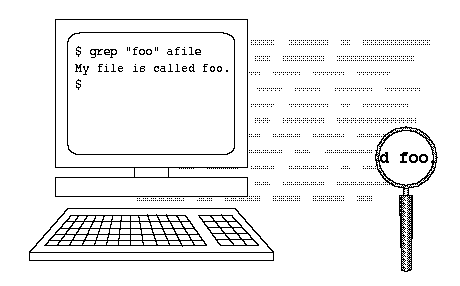
grep command is used to search files for a specific text. This is incredibly powerful command with lot of options.
Syntax: grep [options] pattern [files]
 

How can I find all lines matching a specific keyword on a file?
In this example, grep looks for the text John inside /etc/passwd file and displays all the matching lines.
# grep John /etc/passwd
 

jsmith:x:1082:1082:John Smith:/home/jsmith:/bin/bash
jdoe:x:1083:1083:John Doe:/home/jdoe:/bin/bash
 

Option -v, will display all the lines except the match. In the example below, it displays all the records from /etc/password that doesn't match John.
Note: There are several lines in the /etc/password that doesn’t contain the word John. Only the first line of the output is shown below.
# grep -v John /etc/passwd
jbourne:x:1084:1084:Jason Bourne:/home/jbourne:/bin/bash
 

How many lines matched the text pattern in a particular file?
In the example below, it displays the total number of lines that contains the text John in /etc/passwd file.

# grep -c John /etc/passwd
2
You can also get the total number of lines that did not match the specific pattern by passing option -cv.
# grep -cv John /etc/passwd
39
 

How to search a text by ignoring the case?
Pass the option -i (ignore case), which will ignore the case while searching.
# grep -i john /etc/passwd
jsmith:x:1082:1082:John Smith:/home/jsmith:/bin/bash
jdoe:x:1083:1083:John Doe:/home/jdoe:/bin/bash
 

How do I search all subdirectories for a text matching a specific pattern?
Use option -r (recursive) for this purpose. In the example below, it will search for the text "John" by ignoring the case inside all the subdirectories under /home/users.
This will display the output in the format of "filename: line that matching the pattern". You can also pass the option -l, which will display only the name of the file that matches the pattern.
# grep -ri john /home/users
/home/users/subdir1/letter.txt:John, Thanks for your contribution.
/home/users/name_list.txt:John Smith

/home/users/name_list.txt:John Doe
# grep -ril john /root
/home/users/subdir1/letter.txt
/home/users/name_list.txt


LINUX HACK 16

Hack 16.
SSH Session Statistics using SSH Escape Character:
 
To get some useful statistics about the current ssh session, do the following. This works only on SSH2 client.
1. Login to remotehost from localhost.
localhost$ ssh -l jsmith remotehost
2. On the remotehost, type ssh escape character ~ followed by s as shown below. This will display lot of useful statistics about the current SSH connection.
remotehost$ [Note: The ~s is not visible on the command line when you type.]
remote host: remotehost
local host: localhost
remote version: SSH-1.99-OpenSSH_3.9p1
local version: SSH-2.0-3.2.9.1 SSH Secure Shell (non-commercial)
compressed bytes in: 1506
uncompressed bytes in: 1622
compressed bytes out: 4997
uncompressed bytes out: 5118
packets in: 15
packets out: 24
rekeys: 0
Algorithms:
Chosen key exchange algorithm: diffie-hellman-group1-sha1
Chosen host key algorithm: ssh-dss
Common host key algorithms: ssh-dss,ssh-rsa
Algorithms client to server:
Cipher: aes128-cbc
MAC: hmac-sha1
Compression: zlib

Algorithms server to client:
Cipher: aes128-cbc
MAC: hmac-sha1
Compression: zlib
localhost$


LINUX HACK 15

Hack 15. 
Toggle SSH Session using SSH Escape Character:
 
When you’ve logged on to the remotehost using ssh from the localhost, you may want to come back to the localhost to perform some activity and go back to remote host again. In this case, you don’t need to disconnect the ssh session to the remote host. Instead, follow the steps below.
 

1. Login to remotehost from localhost:
localhost$ ssh -l jsmith remotehost


2. Now you are connected to the remotehost:
remotehost$
 

3. To come back to the localhost temporarily, type the escape character ~ and Control-Z.
When you type ~ you will not see that immediately on the screen until you press <Control-Z> and press enter. So, on the remotehost in a new line enter the following key strokes for the below to work: ~<Control-Z>
remotehost$ ~^Z
[1]+ Stopped ssh -l jsmith remotehost
localhost$
 

4. Now you are back to the localhost and the ssh remotehost client session runs as a typical UNIX background job, which you can check as shown below:
localhost$ jobs
[1]+ Stopped ssh -l jsmith remotehost
 

5. You can go back to the remote host ssh without entering the password again by bringing the background ssh remotehost session job to foreground on the localhost.
localhost$ fg %1
ssh -l jsmith remotehost
remotehost$


LINUX HACK 14

Hack 14.
Debug SSH Client Session:
 
Sometimes it is necessary to view debug messages to troubleshoot any SSH connection issues. pass -v (lowercase v) option to the ssh as shown below to view the ssh debug messages.
Example without SSH client debug message:
localhost$ ssh -l jsmith remotehost.example.com
warning: Connecting to remotehost.example.com failed: No address associated to the name


Example with SSH client debug message:
locaclhost$ ssh -v -l jsmith remotehost.example.com
debug:

SshConfig/sshconfig.c:2838/ssh2_parse_config_ext:
Metaconfig parsing stopped at line 3.
 

debug:
SshConfig/sshconfig.c:637/ssh_config_set_param_verbose:
Setting variable ‘VerboseMode’ to ‘FALSE’.
 

debug:
SshConfig/sshconfig.c:3130/ssh_config_read_file_ext:
Read 17 params from config file.
 

debug: 
Ssh2/ssh2.c:1707/main: User config file not found, using defaults. (Looked for ‘/home/jsmith/.ssh2/ssh2_config’)
 

debug: 
Connecting to remotehost.example.com, port 22… (SOCKS not used)
warning: Connecting to remotehost.example.com failed: No address associated to the name


LINUX HACK 13

Hack 13.
Login to Remote Host using SSH:
 
The First time when you login to a remotehost from a localhost, it will display the host key not found message and you can give “yes” to continue. The host key of the remote host will be added under .ssh2/hostkeys directory of your home directory, as shown below.
localhost$ ssh -l jsmith remotehost.example.com
Host key not found from database.
Key fingerprint:
xabie-dezbc-manud-bartd-satsy-limit-nexiu-jambl-title-jarde-tuxum
You can get a public key’s fingerprint by running
% ssh-keygen -F publickey.pub

on the keyfile.
Are you sure you want to continue connecting (yes/no)? Yes
Host key saved to /home/jsmith/.ssh2/hostkeys/key_22_remotehost.example.com.pub
host key for remotehost.example.com, accepted by jsmith Mon May 26 2008 16:06:50 -0700
jsmith@remotehost.example.com password:
remotehost.example.com$
The Second time when you login to the remote host from the localhost, it will prompt only for the password as the remote host key is already added to the known hosts list of the ssh client.
localhost$ ssh -l jsmith remotehost.example.com
jsmith@remotehost.example.com password:
remotehost.example.com$
For some reason, if the host key of the remote host is changed after you logged in for the first time, you may get a warning message as shown below. This could be because of various reasons such as:
o Sysadmin upgraded/reinstalled the SSH server on the remote host
o Someone is doing malicious activity etc.,
The best possible action to take before saying “yes” to the message below, is to call your sysadmin and identify why you got the host key changed message and verify whether it is the correct host key or not.
localhost$ ssh -l jsmith remotehost.example.com
@@@@@@@@@@@@@@@@@@@@@@@@@@@@@@@@@@@@@@@@@@@@@
@ WARNING: HOST IDENTIFICATION HAS CHANGED! @
@@@@@@@@@@@@@@@@@@@@@@@@@@@@@@@@@@@@@@@@@@@@@
IT IS POSSIBLE THAT SOMEONE IS DOING SOMETHING NASTY!
Someone could be eavesdropping on you right now (man-in-the-

middle attack)!
It is also possible that the host key has just been changed.
Please contact your system administrator.
Add correct host key to “/home/jsmith/.ssh2/hostkeys/key_22_remotehost.example.com.pub”
to get rid of this message.
Received server key’s fingerprint:
xabie-dezbc-manud-bartd-satsy-limit-nexiu-jambl-title-arde-tuxum
You can get a public key’s fingerprint by running
% ssh-keygen -F publickey.pub
on the keyfile.
Agent forwarding is disabled to avoid attacks by corrupted servers.
Are you sure you want to continue connecting (yes/no)? yes
Do you want to change the host key on disk (yes/no)? yes
Agent forwarding re-enabled.
Host key saved to /home/jsmith/.ssh2/hostkeys/key_22_remotehost.example.com.pub
host key for remotehost.example.com, accepted by jsmith Mon May 26 2008 16:17:31 -0700
jsmith @remotehost.example.com’s password:
remotehost$


LINUX HACK 12

Chapter 3: SSH Client Commands:
Hack 12. 

Identify SSH Client Version:
 
Sometimes it may be necessary to identify the SSH client that you are currently running and it’s corresponding version number. Use ssh –V to identify the version number. Please note that Linux comes with OpenSSH.
The following example indicates that this particular system is using OpenSSH:
$ ssh -V
OpenSSH_3.9p1, OpenSSL 0.9.7a Feb 19 2003
The following example indicates that this particular system is using SSH2:
$ ssh -V
ssh: SSH Secure Shell 3.2.9.1 (non-commercial version) on i686-pc-linux-gnu


LINUX HACK 11

Hack 11. 
Display Future Date and Time:
 
Following examples shows how to display a future date and time.
$ date
Thu Jan 1 08:30:07 PST 2009
$ date --date='3 seconds'
Thu Jan 1 08:30:12 PST 2009
$ date --date='4 hours'
Thu Jan 1 12:30:17 PST 2009
$ date --date='tomorrow'
Fri Jan 2 08:30:25 PST 2009
$ date --date="1 day"
Fri Jan 2 08:30:31 PST 2009
$ date --date="1 days"
Fri Jan 2 08:30:38 PST 2009
$ date --date="2 days"
Sat Jan 3 08:30:43 PST 2009
$ date --date='1 month'
Sun Feb 1 08:30:48 PST 2009
$ date --date='1 week'
Thu Jan 8 08:30:53 PST 2009
$ date --date="2 months"
Sun Mar 1 08:30:58 PST 2009
$ date --date="2 years"
Sat Jan 1 08:31:03 PST 2011
$ date --date="next day"
Fri Jan 2 08:31:10 PST 2009

$ date --date="-1 days ago"
Fri Jan 2 08:31:15 PST 2009
$ date --date="this Wednesday"
Wed Jan 7 00:00:00 PST 2009


LINUX HACK 10

Hack 10. 
Display Past Date and Time:
Following are various ways to display a past date and time:
$ date --date='3 seconds ago'
Thu Jan 1 08:27:00 PST 2009
$ date --date="1 day ago"
Wed Dec 31 08:27:13 PST 2008
$ date --date="1 days ago"
Wed Dec 31 08:27:18 PST 2008
$ date --date="1 month ago"
Mon Dec 1 08:27:23 PST 2008
$ date --date="1 year ago"
Tue Jan 1 08:27:28 PST 2008
$ date --date="yesterday"
Wed Dec 31 08:27:34 PST 2008
$ date --date="10 months 2 day ago"
Thu Feb 28 08:27:41 PST 2008


LINUX HACK 9

Hack 9.
Display Current Date and Time in a Specific Format:
 
Following are different ways of displaying the current date and time in various formats:

$ date
Thu Jan 1 08:19:23 PST 2009
$ date --date="now"
Thu Jan 1 08:20:05 PST 2009
$ date --date="today"
Thu Jan 1 08:20:12 PST 2009
$ date --date='1970-01-01 00:00:01 UTC +5 hours' +%s
18001
$ date '+Current Date: %m/%d/%y%nCurrent Time:%H:%M:%S'
Current Date: 01/01/09
Current Time:08:21:41
$ date +"%d-%m-%Y"
01-01-2009
$ date +"%d/%m/%Y"
01/01/2009
$ date +"%A,%B %d %Y"
Thursday,January 01 2009
Following are the different format options you can pass to the date command:
o %D date (mm/dd/yy)
o %d day of month (01..31)
o %m month (01..12)
o %y last two digits of year (00..99)
o %a locale’s abbreviated weekday name (Sun..Sat)
o %A locale’s full weekday name, variable length (Sunday..Saturday)
o %b locale’s abbreviated month name (Jan..Dec)
o %B locale’s full month name, variable length (January..December)
o %H hour (00..23)
o %I hour (01..12)
o %Y year (1970…)


LINUX HACK 8

Hack 8.
Set Hardware Date and Time:
Before setting the hardware date and time, make sure the OS date and time is set appropriately as shown in the hack#7.
Set the hardware date and time based on the system date as shown below:
# hwclock –systohc
# hwclock --systohc –utc
Use hwclock without any parameter, to view the current hardware date and time:
# hwclock
Check the clock file to verify whether the system is set for UTC:
# cat /etc/sysconfig/clock
ZONE="America/Los_Angeles"
UTC=false
ARC=false


LINUX HACK 7

Chapter 2: Date Manipulation
Hack 7:

Set System Date and Time:
 
To change the system date use:
# date {mmddhhmiyyyy.ss}
o mm – Month
o dd – Date
o hh – 24 hour format
o mi – Minutes
o yyyy – Year
o ss – seconds
For example, to set system date to Jan 31st 2008, 10:19 p.m, 53 seconds
# date 013122192009.53
You can also change system date using set argument as shown below.
# date 013122192009.53
# date +%Y%m%d -s "20090131"
# date -s "01/31/2009 22:19:53"
# date -s "31 JAN 2009 22:19:53"
# date set="31 JAN 2009 22:19:53"
To set the time only:
# date +%T -s "22:19:53"

# date +%T%p -s "10:19:53PM"


LINUX HACK 6

Hack 6. 
Use “shopt -s cdspell” to automatically correct mistyped directory names on cd:
 
Use shopt -s cdspell to correct the typos in the cd command automatically as shown below. If you are not good at typing and make lot of mistakes, this will be very helpful.
# cd /etc/mall
-bash: cd: /etc/mall: No such file or directory
# shopt -s cdspell
# cd /etc/mall
# pwd
/etc/mail
[Note: By mistake, when I typed mall instead of mail,
cd corrected it automatically]


LINUX HACK 5

Hack 5.
Use dirs, pushd and popd to manipulate directory stack:
 
You can use directory stack to push directories into it and later pop directory from the stack. Following three commands are used in this example.

o dirs: Display the directory stack
o pushd: Push directory into the stack
o popd: Pop directory from the stack and cd to it
Dirs will always print the current directory followed by the content of the stack. Even when the directory stack is empty, dirs command will still print only the current directory as shown below.
# popd
-bash: popd: directory stack empty
# dirs
~
# pwd
/home/ramesh
How to use pushd and popd? Let us first create some temporary directories and push them to the directory stack as shown below.
# mkdir /tmp/dir1
# mkdir /tmp/dir2
# mkdir /tmp/dir3
# mkdir /tmp/dir4
# cd /tmp/dir1
# pushd .
# cd /tmp/dir2
# pushd .
# cd /tmp/dir3
# pushd .
# cd /tmp/dir4
# pushd .

# dirs
/tmp/dir4 /tmp/dir4 /tmp/dir3 /tmp/dir2 /tmp/dir1
[Note: The first directory (/tmp/dir4) of the dir command output is always the current directory and not the content from the stack.]
At this stage, the directory stack contains the following directories:
/tmp/dir4
/tmp/dir3
/tmp/dir2
/tmp/dir1
The last directory that was pushed to the stack will be at the top. When you perform popd, it will cd to the top directory entry in the stack and remove it from the stack. As shown above, the last directory that was pushed into the stack is /tmp/dir4. So, when we do a popd, it will cd to the /tmp/dir4 and remove it from the directory stack as shown below.
# popd
# pwd
/tmp/dir4
[Note: After the above popd, directory Stack Contains:
/tmp/dir3
/tmp/dir2
/tmp/dir1]
# popd
# pwd
/tmp/dir3
[Note: After the above popd, directory Stack Contains:
/tmp/dir2
/tmp/dir1]
# popd

# pwd
/tmp/dir2
[Note: After the above popd, directory Stack Contains: /tmp/dir1]
# popd
# pwd
/tmp/dir1
[Note: After the above popd, directory Stack is empty!]
# popd
-bash: popd: directory stack empty


LINUX HACK 4

Hack 4.
Use “cd -” to toggle between the last two directories:
 
You can toggle between the last two current directories using cd - as shown below.
# cd /tmp/very/long/directory/structure/that/is/too/deep
# cd /tmp/subdir1/subdir2/subdir3
# cd -
# pwd
/tmp/very/long/directory/structure/that/is/too/deep
# cd -
# pwd
/tmp/subdir1/subdir2/subdir3
# cd -
# pwd
/tmp/very/long/directory/structure/that/is/too/deep


LINUX HACK 3

Hack 3. 
Perform mkdir and cd using a single command:
 
Sometimes when you create a new directory, you may cd to the new directory immediately to perform some work as shown below.
# mkdir -p /tmp/subdir1/subdir2/subdir3
# cd /tmp/subdir1/subdir2/subdir3
# pwd
/tmp/subdir1/subdir2/subdir3
Wouldn’t it be nice to combine both mkdir and cd in a single command? Add the following to the .bash_profile and re-login.
$ vi .bash_profile
function mkdircd () { mkdir -p "$@" && eval cd "\"\$$#\""; }
Now, perform both mkdir and cd at the same time using a single command as shown below:

# mkdircd /tmp/subdir1/subdir2/subdir3
[Note: This creates the directory and cd to it automatically]
# pwd
/tmp/subdir1/subdir2/subdir3


LINUX HACK 2

Hack 2. 
Use cd alias to navigate up the directory effectively:
 
When you are navigating up a very long directory structure, you may be using cd ..\..\ with multiple ..\’s depending on how many directories you want to go up as shown below.
# mkdir -p /tmp/very/long/directory/structure/that/is/too/deep
# cd /tmp/very/long/directory/structure/that/is/too/deep
# pwd
/tmp/very/long/directory/structure/that/is/too/deep
# cd ../../../../
# pwd
/tmp/very/long/directory/structure
Instead of executing cd ../../../.. to navigate four levels up, use one of the following three alias methods:

Method 1: Navigate up the directory using “..n”:
In the example below, ..4 is used to go up 4 directory level, ..3 to go up 3 directory level, ..2 to go up 2 directory level. Add the following alias to your ~/.bash_profile and re-login.
alias ..="cd .."
alias ..2="cd ../.."
alias ..3="cd ../../.."
alias ..4="cd ../../../.."
alias ..5="cd ../../../../.."
# cd /tmp/very/long/directory/structure/that/is/too/deep
# ..4
[Note: use ..4 to go up 4 directory level]
# pwd
/tmp/very/long/directory/structure/
Method 2: Navigate up the directory using only dots
In the example below, ….. (five dots) is used to go up 4 directory level. Typing 5 dots to go up 4 directory structure is really easy to remember, as when you type the first two dots, you are thinking “going up one directory”, after that every additional dot, is to go one level up. So, use …. (four dots) to go up 3 directory level and .. (two dots) to go up 1 directory level. Add the following alias to your ~/.bash_profile and re-login for the ….. (five dots) to work properly.
alias ..="cd .."
alias ...="cd ../.."
alias ....="cd ../../.."
alias .....="cd ../../../.."
alias ......="cd ../../../../.."
# cd /tmp/very/long/directory/structure/that/is/too/deep
# .....
[Note: use ..... (five dots) to go up 4 directory level]
# pwd
/tmp/very/long/directory/structure/
Method 3: Navigate up the directory using cd followed by consecutive dots:
In the example below, cd….. (cd followed by five dots) is used to go up 4 directory level. Making it 5 dots to go up 4 directory structure is really easy to remember, as when you type the first two dots, you are thinking “going up one directory”, after that every additional dot, is to go one level up. So, use cd…. (cd followed by four dots) to go up 3 directory level and cd… (cd followed by three dots) to go up 2 directory level. Add the following alias to your ~/.bash_profile and re-login for the above cd….. (five dots) to work properly.
alias cd..="cd .."
alias cd...="cd ../.."
alias cd....="cd ../../.."
alias cd.....="cd ../../../.."
alias cd......="cd ../../../../.."
# cd /tmp/very/long/directory/structure/that/is/too/deep
# cd.....
[Note: use cd..... to go up 4 directory level]
# pwd
/tmp/very/long/directory/structure
Method 4: Navigate up the directory using cd followed by number:
In the example below, cd4 (cd followed by number 4) is used to go up 4 directory level.
alias cd1="cd .."
alias cd2="cd ../.."
alias cd3="cd ../../.."
alias cd4="cd ../../../.."
alias cd5="cd ../../../../.."


Powerful CD Command Hacks

Chapter 1: Powerful CD Command Hacks:
 
cd is one of the most frequently used commands during a UNIX session. The 6 cd command hacks mentioned in this chapter will boost your productivity instantly and make it easier to navigate the directory structure from command line.
Hack 1. Use CDPATH to define the base directory for cd command
If you are frequently performing cd to subdirectories of a specific parent directory, you can set the CDPATH to the parent directory and perform cd to the subdirectories without giving the parent directory path as explained below.
[ramesh@dev-db ~]# pwd
/home/ramesh
[ramesh@dev-db ~]# cd mail
-bash: cd: mail: No such file or directory
[Note: This is looking for mail directory under current directory]
[ramesh@dev-db ~]# export CDPATH=/etc
[ramesh@dev-db ~]# cd mail
/etc/mail
[Note: This is looking for mail under /etc and not under current directory]
[ramesh@dev-db /etc/mail]# pwd
/etc/mail
To make this change permanent, add export CDPATH=/etc to your ~/.bash_profile
Similar to the PATH variable, you can add more than one directory entry in the CDPATH variable, separating them with : , as shown below.
export CDPATH=.:~:/etc:/var
This hack can be very helpful under the following situations:
o Oracle DBAs frequently working under $ORACLE_HOME, can set the CDPATH variable to the oracle home
o Unix sysadmins frequently working under /etc, can set the CDPATH variable to /etc
o Developers frequently working under project directory /home/projects, can set the CDPATH variable to /home/projects
o End-users frequently accessing the subdirectories under their home directory, can set the CDPATH variable to ~ (home directory)


ABOUT HACKING

Contents


1. Introduction

2. History

3.Categories of Hackers

4. Hacking in the real world

5.Hackers Motivation & Hacking Attacking

6.Hacking Techniques

7.Security

8.Conclusion


HACKING


1. Introduction to Hacking:


The Internet, like any other new media historically, provides new methods of engaging in illegal activities. That is not to say that the Internet is intrinsically 'bad', as many tabloid journalists would have us to believe, it is simply a means for human beings to express themselves and share common interests. Unfortunately, many of these common interests include pornography, trading Warez (pirated software), trading illegal MP3 files, and engaging in all kinds of fraud such as credit card fraud
Hacking on the other hand is a greatly misrepresented activity as portrayed by the wider media and Hollywood movies.

Although many hackers go on from being computer enthusiasts to Warez pirates, many also become system administrators, security consultants or website managers.

Orkut Hacking Tricks

Orkut Hacking Tricks :

Orkut Hack Tricks are much popular in todays social n/w era.Few days ago, one of my friend was orkutting and suddenly he found that so many scraps and photos were deleted from his account. He shocked and decided to monitor own orkut account. So, he monitored his Orkut Account for one week and found that someone was deleting data continuously.
Yes, he is victim of Orkut Hack Tricks.
As everyone knows, Orkut is social networking site from web giant Google. Irrespective of many security measures, pros can easily Hack Orkut account of dummies using Orkut hack tricks. So, In this article, i am explaining how Orkut Hack tricks take place and how to prevent Orkut Hack tricks.
Basically, there are three ways by which one can perform orkut hack Tricks to hack Orkut Account of victims.
4 Ways of Orkut Hack Tricks :

1) Orkut Hack Tricks by Javascript (Cookie Stealing) (Most used from last 2 years and most working)
2) Orkut Hack Tricks by keylogging (Useful on public computer/if you have access to victims machine).
3) Orkut Hack Tricks by Google Account Hacking Tricks (Sometimes works).
4) Orkut Hack Tricks by phishing (My favourite and somewhat difficult).

1) Orkut Hack Tricks by Javascript

Do you receive any message showing "hot orkut theme!!!" ? Do clicked on it ? If ans wer is ‘yes',then you were hacked. Yes it is most used orkut hack Tricks type nowdays. When you click on such link, Orkut cookie (which is stored on your  machine) is stolen and in turn your orkut account password is hacked.
Click here for Orkut hack Tricks via JavaScript Orkut Hacking

2) Orkut Hack Tricks by Key logging

Key logging is easier orkut hack Tricks than phishing if you have access to victims machine.If you thought your boyfriend/girlfriend/hubby is cheating with you,you can easily apply these Orkut hack Tricks by using a good key logger.

Key Logger:

Key logger is s/w which tracks key strokes you made on your key board. Day by day technology is developing and today key loggers come with following features in addition to basic key logging feature :
1) Hidden Mode
: Not visible in task manager or program files or programs.
2) Auto email :
Automatically Send emails to  hackers email address.
3) Undetectable by Anti virus s/w.
Here is in depth and easy tutorial : 

Orkut Hack Tricks by using key logging.

Phishing :


Phishing is yet another type of Orkut hack tricks. You can hack orkut even though you do not have direct access to victims machine. i.e. remote hacking. In better words, phishing is not hacking but it is tricking victim to gain his/her user name and password. The basic requirement for orkut phishing is orkut phisher and anonymous email client.
Here is in depth and easy tutorial : 
Orkut Hack Tricks by using key logging.

Orkut hacking by Google account hack:

It is quite different way of orkut hack Tricks. As everyone know,every orkut account require a email address as user name. You can use either email address from Google(Gmail) address or email address from any third third party email client (e.g. Yahoo,Hot mail etc). So, if you hacked gmail account, that mean you hacked orkut account too.
I will shortly come with article to explain how to hack orkut using Google account hack.


Read more: http://www.articlesbase.com/security-articles/orkut-hacking-orkut-hack-tricks-2808337.html#ixzz15MyQOZeK
Under Creative Commons License: Attribution